Run a local LLM for coding in VS Code: serve a model with Ollama, wire up chat and autocomplete in Continue, Cline or llama.vscode, and fix the usual failures.
To run a local LLM for coding in VS Code, serve a model with Ollama, LM Studio or llama.cpp, then point an extension at it. Continue, Cline and llama.vscode all work. Use two models: a 7B-class chat model and a 1.5B fill-in-the-middle model for autocomplete. Raise Ollama's context length, because the default is 4k tokens on GPUs under 24 GiB of VRAM.
- qwen2.5-coder:1.5b (986 MB)
- qwen2.5-coder:7b (4.7 GB)
- 11434
- 64k tokens or more
Key takeaways
- A working setup has three parts: a model server (Ollama, LM Studio or llama.cpp), a VS Code extension, and two models, one for chat and one for autocomplete.
- Continue is still installable and Apache-2.0 licensed, but its repository is read-only after Cursor acquired the company in 2026. Cline and llama.vscode are the actively listed alternatives.
- Ollama defaults to a 4k context on GPUs under 24 GiB of VRAM; its docs recommend at least 64k tokens for coding tools and agents.
- Autocomplete needs a small model with a fill-in-the-middle prompt format. Continue's docs suggest qwen2.5-coder:1.5b, about 1 GB.
- Most failures come from context length, a wrong base URL, or a model that doesn't support tool calling.
What do you need to run a local LLM for coding in VSCode?
A local LLM for coding in VSCode needs a model server, a VS Code extension that talks to it, and ideally two models. Developers who run this setup daily keep it small: one Ask HN poster on a 16 GB M2 Mac mini reported an 8B Llama 3 instruct at Q4_K_M answering in under 300 ms, with Continue handling autocomplete and inline explanations. That is a community report, not our measurement.
In more detail, you need a model server, a VS Code extension that talks to it, and ideally two models. The server loads the weights and exposes a local HTTP endpoint: Ollama, LM Studio and llama.cpp all do this. The extension sends your editor context to that endpoint. The second model exists because chat and tab completion are different jobs.
| Job | What it needs | Typical pick | Size on disk |
|---|---|---|---|
| Chat, edit, agent | A larger instruct model, tool calling for agents | qwen2.5-coder:7b | 4.7 GB |
| Tab autocomplete | A small model trained for fill-in-the-middle (FIM), low latency | qwen2.5-coder:1.5b | 986 MB |
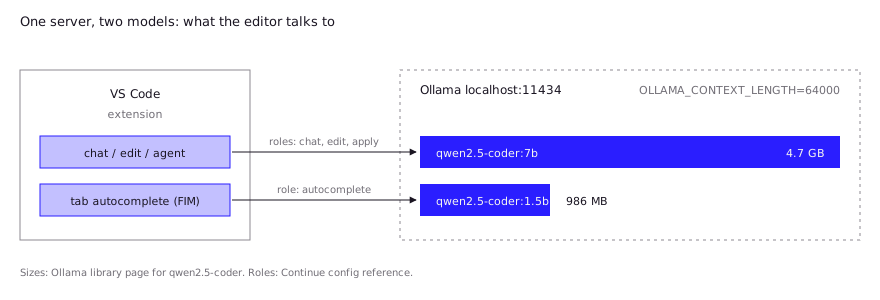
Sizes are from the Ollama library page. Qwen2.5-Coder is an older family, and newer coder models exist, so check our model guide and the coding model ranking before you commit. The setup below doesn’t change when you swap the model tag. For memory sizing, see local LLM hardware requirements.
Which extension should you use in 2026?
Use Continue if you want chat plus autocomplete in one extension and accept that it is frozen, or use Cline or llama.vscode if you want something still being developed. The landscape shifted this year.
Continue’s site now says it “has joined Cursor”, and the GitHub README says the repository is “no longer actively maintained and is read-only.” The README describes a final 2.0.0 release with telemetry and authentication removed, under Apache-2.0. Secondary reporting dates the acquisition to mid-June 2026. A Hacker News thread from August 2026 asks for alternatives, and one commenter notes that “not maintained” doesn’t mean it stops working. That matches the docs: the documentation still describes the same setup, so it works today, but expect no fixes for new Ollama or VS Code changes.
| Extension | Chat | Autocomplete | Agent mode | License | Status (Oct 2026) |
|---|---|---|---|---|---|
| Continue | Yes | Yes (FIM) | Yes | Apache-2.0 | Read-only repo, final 2.0.0 |
| Cline | Yes | No | Yes, central feature | Apache-2.0 | Active repo |
| llama.vscode | Yes | Yes (FIM) | Yes (Llama Agent) | MIT | Active repo |
Ollama also ships its own VS Code extension that adds local and cloud models to VS Code’s built-in Chat model picker. It requires VS Code 1.127 or newer. For a broader tool comparison, see self-hosted Copilot alternatives.
Step 1: How do you serve a model with Ollama or LM Studio?
The failure developers hit first is context, not the model. A Continue GitHub issue describes an Ollama Modelfile with num_ctx 4096 leaving no room for the prompt, so suggestions came back empty with no error. So install Ollama, pull the two models, and confirm the server answers on port 11434.
ollama pull qwen2.5-coder:7b
ollama pull qwen2.5-coder:1.5b
curl http://localhost:11434   # prints "Ollama is running"
Then fix the context length before you go further.
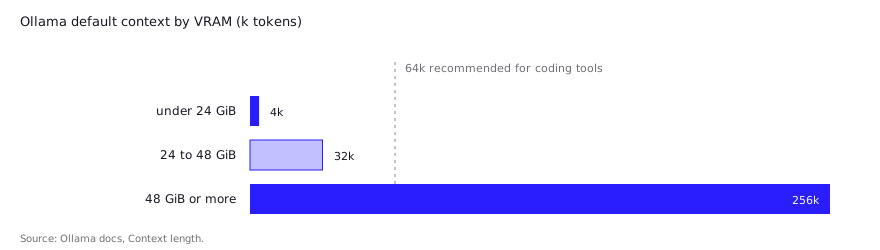
Ollama’s documentation sets the default by VRAM: 4k tokens under 24 GiB, 32k from 24 to 48 GiB, 256k above that. For web search, agents and coding tools it recommends at least 64,000 tokens, which you can set with the OLLAMA_CONTEXT_LENGTH environment variable or the slider in the Ollama app.
OLLAMA_CONTEXT_LENGTH=64000 ollama serve
ollama ps   # check the CONTEXT and PROCESSOR columns
If ollama ps shows part of the model on the CPU, the context doesn’t fit in VRAM. Lower it, or pick a smaller model or quant. Details are in local LLM context length.
LM Studio works too. In the app, open the Developer tab and switch on “Start server”, or run lms server start from its CLI, per its server docs. It exposes an OpenAI-compatible API on a port shown in the app, so any extension with an OpenAI-compatible provider can use it. The trade-offs are in LM Studio vs Ollama, and the API surface is covered in Ollama’s OpenAI-compatible API.
Step 2: How do you configure Continue for a local model?
Add the models to Continue’s config.yaml with provider: ollama. Per Continue’s config reference, each model takes a name, provider, model, optional apiBase, and a list of roles. If you omit roles, a model gets chat, edit, apply and summarize.
name: local-assistant
version: 0.0.1
schema: v1

models:
  - name: Qwen Coder 7B
    provider: ollama
    model: qwen2.5-coder:7b
    roles:
      - chat
      - edit
      - apply
  - name: Qwen Coder 1.5B autocomplete
    provider: ollama
    model: qwen2.5-coder:1.5b
    roles:
      - autocomplete
apiBase is only needed for a remote Ollama instance, such as http://my-server:11434, according to Continue’s Ollama page. The same page warns that Continue may request a higher context length than other Ollama clients, which can cause a “model requires more system memory” error. The fix it gives is to lower defaultCompletionOptions.contextLength for that model, or use a smaller variant. Ollama usually auto-detects capabilities, but for custom model names you can set capabilities: [tool_use] explicitly.
Step 3: How do you add a small model for autocomplete?
Give the autocomplete role to a small FIM-capable model, as in the config above. Continue’s autocomplete guide recommends qwen2.5-coder:1.5b for local use. It warns that models without the expected prompt format won’t produce useful completions, and that thinking models are a poor fit because they respond slowly. A switchable one such as qwen3:4b can work with think: false under requestOptions.extraBodyProperties.
If autocomplete does nothing, the docs’ checklist is short:
- Confirm “Enable Tab Autocomplete” is on in the Continue status bar menu.
- Confirm the model finished downloading.
- Disable other completion providers such as Copilot.
- Set
editor.inlineSuggest.enabledtotruein VS Code. - Check the logs for errors.
Don’t use your chat model for this. A 7B or larger model is slower per keystroke, and one that isn’t FIM-trained can return prose where code should go.
Is Cline or llama.vscode a better fit?
Cline is for agentic tasks, and llama.vscode is for fast local autocomplete with llama.cpp. Pick by workflow rather than by feature count.
Cline. In Cline’s settings choose the Ollama provider, set the base URL to http://localhost:11434, pick a model, and enable “Use Compact Prompt”, per its Ollama docs. Cline’s guidance is to keep tasks small and start a new task when context grows. It has no tab autocomplete, so pair it with another extension if you want that.
llama.vscode. The ggml-org extension (MIT) uses llama.cpp directly. It offers tab completion, chat and an agent, and installs llama.cpp through its menu, with brew install llama.cpp on macOS and winget install llama.cpp on Windows. Its README lists server presets by VRAM, for example --fim-qwen-7b-default above 16 GB, --fim-qwen-3b-default below 16 GB and --fim-qwen-1.5b-default below 8 GB, plus a CPU-only command that uses a 1.5B Qwen2.5-Coder GGUF. The FIM models are the same family as above. If you are choosing among completion models, see local code completion models.
What do developers report in practice?
Community reports are mixed: small FIM models work well on modest hardware, but context settings and tool calling cause most of the pain. These are anecdotes from the linked threads, not our measurements.
- Hardware and speed. In a Hacker News thread on local LLM setups, one commenter reported about 50 tokens/sec generation and 550 tokens/sec prompt processing running Qwen3-Coder-30B-A3B at Q4 with llama.cpp on a 64 GB MacBook Pro, using Continue in VS Code. Another reported a Q8 quant across two RTX 3090s at up to about 100 tokens/sec and called Q4 on a single 3090 fast and fairly capable.
- llama.vscode for completion. A commenter in that thread uses llama-vscode with llama-server for completion only and calls 7B “the sweet spot” for fast completions.
- Small hardware. In a separate Ask HN thread, a user on a 16 GB M2 Mac mini reported an 8B Llama 3 instruct at Q4_K_M answering in under 300 ms, with Continue handling autocomplete and inline explanations.
- A silent autocomplete failure. A Continue GitHub issue reports that if an Ollama Modelfile sets
num_ctx 4096, Continue’s defaultmaxTokensof 4096 leaves no room for the prompt, so suggestions come back empty with no error. Workarounds listed there: set a smallmaxTokenssuch as 128, raisecontextLength, or remove thenum_ctxline. The issue was open when we checked. - Syntax errors with 7B autocomplete. Another Continue issue reports unclosed or duplicated brackets from
qwen2.5-coder:7bin autocomplete. No root cause was identified, and it was closed as stale, not fixed. That fits the advice above to use a small FIM-tuned model for completion. - Connection problems. An Ask HN poster on an RTX 4070 with 12 GB VRAM reported Continue’s Ollama integration exhausting the TCP connection pool at startup, and planned to try LM Studio instead.
Why isn’t it working? Common local setup failures
Most failures trace to four causes: the server, the context, the model’s abilities, or a stale config format.
| Symptom | Likely cause | Fix |
|---|---|---|
| Connection refused | Ollama not running, wrong URL | curl http://localhost:11434; use the exact base URL in the extension |
| Empty or truncated suggestions | Context too small, or num_ctx clash | Raise context; see the issue above |
| “Requires more system memory” | Context too large for the machine | Lower contextLength, or use a smaller model |
| Agent stalls or ignores instructions | Small context truncating tool prompts, or no tool-calling support | Raise context to 64k or more; use a model with tool support |
| Autocomplete returns prose | Chat model assigned to the autocomplete role | Use a small FIM model |
| Old tutorial doesn’t match | Pre-1.0 Continue used config.json | Use config.yaml with schema: v1 |
For Cline, a third-party troubleshooting page on local Ollama timeouts suggests raising the request timeout for 13B-class models on mid-range hardware, since Cline’s tool definitions make prompts much larger than a plain chat message. Treat it as a community suggestion.
One scope note: a local model gives you control over prompts and data, and your code stays on your machine. It doesn’t remove the model’s own safety tuning. If a model refuses legitimate work on your own code, that is a separate problem, covered in why LLMs over-refuse.
FAQ
What is the best local LLM for coding in VS Code?
For a 16 GB-class machine, a 7B coder model for chat plus a 1.5B model for autocomplete is the baseline in the official docs. Larger models help with agents, but need more memory and context. See our coding model ranking.
Does Continue still work with local models?
Yes, but it is no longer maintained. Cursor acquired Continue in 2026 and the repository is read-only, so it keeps working as shipped under Apache-2.0 but won’t get fixes.
Can VS Code use Ollama without an extension like Continue?
Ollama has its own VS Code extension that adds your local models to the built-in Chat model picker. It needs VS Code 1.127 or newer, and Ollama’s docs recommend a context length of at least 64k for local models.
Do I need a GPU to run a local coding model in VS Code?
No. llama.vscode’s README includes a CPU-only command with a 1.5B Qwen2.5-Coder model, though it describes the quality as lower. A GPU or Apple silicon makes chat and agent use far more comfortable.
Why does Ollama autocomplete return nothing?
Check that tab autocomplete is enabled, the model finished downloading, other completion providers like Copilot are off, and the context settings leave room for the prompt.
Sources (10)
- Continue docs: Autocomplete
- Continue docs: Ollama provider
- Continue docs: config.yaml reference
- Continue GitHub repository (README maintenance notice)
- Continue: Continue has joined Cursor
- Ollama docs: Context length
- Ollama docs: VS Code integration
- Ollama library: qwen2.5-coder
- llama.vscode (ggml-org) README
- Cline docs: Ollama setup