Run an LLM locally in four decisions: runtime, model, quantization, front-end. Default setups for Windows, macOS and Linux, plus the pitfalls devs hit first.
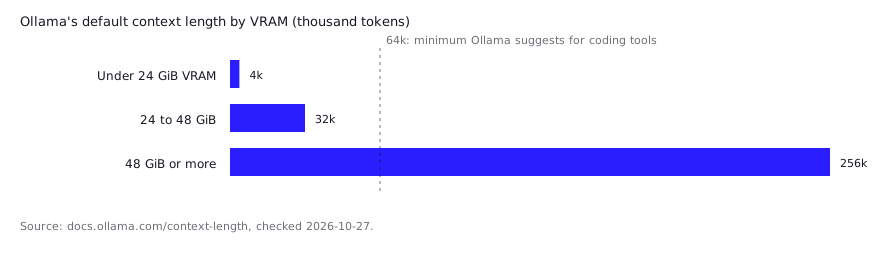
To run an LLM locally, install a runtime (Ollama or LM Studio for most people, llama.cpp for control), pull a quantized GGUF model whose file fits in your GPU or unified memory with room left for context, and point your editor or coding agent at the local OpenAI-compatible endpoint. Raise the context length first: Ollama defaults to 4k below 24 GiB of VRAM, too small for agents.
- 4k tokens
- At least 64,000 tokens
- Ollama :11434/v1, LM Studio :1234/v1
- Oct 27, 2026
Key takeaways
- Four decisions, in order: runtime, model, quantization, front-end. Memory is the constraint that drives the other three.
- Ollama or LM Studio is the right start for most developers. Both serve an OpenAI-compatible API on localhost, so your editor does not care which you picked.
- Ollama's documented default context is 4k tokens below 24 GiB of VRAM, while its own docs say coding tools should have at least 64,000. Setting it is the first fix to make.
- If the model file plus context cache exceeds VRAM, layers spill to CPU and speed drops sharply. Check with ollama ps.
- Abliterated models run in the same runtimes, but the base model's license and acceptable-use terms still apply.
What do you need to run an LLM locally?
How much memory you need is the most disputed part. In an October 2026 HN thread about a local inference engine, one commenter said that for agentic work with a 27B-class Qwen model, 64 or 96 GB works but “realistically” you want 128 GB, while another said the same model family runs on 16 GiB devices with custom quantization (HN thread). The gap is context length and patience, as the sections below show.
You need three things: a runtime that executes the model, a model file small enough for your memory, and a front-end that talks to it. A discrete GPU or an Apple Silicon Mac makes it comfortable, but neither is strictly required. Ollama’s own quickstart is blunt about the floor: its small example model is a roughly 7.2 GB download, and it recommends 8 GB of available VRAM, or unified memory on a Mac, with system RAM as a slower fallback.
Work through these four decisions in order, because each constrains the next:
- Runtime. The program that loads the weights and serves them: Ollama, LM Studio or llama.cpp.
- Model. Chosen by what fits in memory, not by leaderboard rank.
- Quantization. The precision of the weights. It sets file size and therefore what fits.
- Front-end. Your editor extension, terminal agent or chat window, connected over a local API.
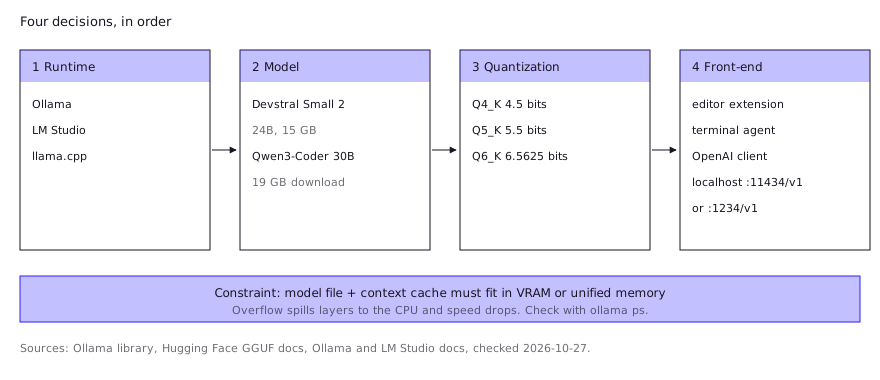
Memory is the binding constraint. The hardware requirements guide covers the arithmetic; the short version is that the model file plus the context cache must fit in fast memory.
Which runtime should you start with?
Start with Ollama if you live in a terminal, or LM Studio if you want a GUI and no command line at all. Both are built to hide the plumbing, and both expose an OpenAI-compatible API, so switching later costs you one base URL.
| Runtime | Best for | Interface | Local API |
|---|---|---|---|
| Ollama | Terminal users, scripts, agents | CLI plus desktop app | http://localhost:11434/v1 |
| LM Studio | No-code start, model browsing | GUI | http://localhost:1234/v1 |
| llama.cpp | Maximum control, newest features | CLI and server | OpenAI-compatible server (llama serve) |
Pick llama.cpp when you want to tune offloading, run a specific GGUF straight from Hugging Face, or build a headless server. Pick vLLM when you serve a team on datacenter GPUs. The trade-offs in detail, including concurrency and default context behavior, are in Ollama vs llama.cpp vs vLLM.
Which model and quantization fit your machine?
One Ask HN commenter described their most reliable local coding setup as Devstral driven by OpenHands, using an Unsloth Q6_K_XL quant with about 85,000 tokens of context, flash attention and a Q8-quantized KV cache. Their second pick was GPT-OSS-20B with opencode, and they said Python help was practically their only local use case (Ask HN, Aug 2025). It is one developer’s setup, not a benchmark.
Choose the largest model whose file fits in your memory with several GB to spare for the context cache, then pick a 4-bit to 6-bit quantization of it. Quantization stores the weights at lower precision. Hugging Face’s GGUF documentation lists the bits per weight for the common GGUF types, and LM Studio’s docs advise choosing a 4-bit option or higher if your machine can run it.
| Quantization | Bits per weight (HF docs) | Use it when |
|---|---|---|
| Q4_K | 4.5 | Memory is tight; the usual default |
| Q5_K | 5.5 | You have headroom and want less quality loss |
| Q6_K | 6.5625 | Small models, or plenty of spare memory |
For concrete coding models, the Ollama library shows Devstral Small 2 (24B, Apache 2.0) as a 15 GB download, which suits a 24 GB card with room for context. Qwen3-Coder 30B is a 19 GB download. Treat both as “needs a 24 GB-class machine” rather than “fits a 16 GB card”. Which model wins at each memory tier changes monthly; best local LLM for coding keeps that list current, and GGUF quantization explained decodes the Q4_K_M style names.
What is the default setup on Windows, macOS and Linux?
On all three systems, install Ollama, pull one model, and run it. LM Studio is the GUI alternative on each.
| OS | Ollama requirements (official docs) | Install |
|---|---|---|
| Windows | Windows 10 22H2 or newer; NVIDIA driver 551.61 or newer, or AMD ROCm/Vulkan drivers | OllamaSetup.exe, no Administrator rights needed |
| macOS | macOS Sonoma (14) or newer; Apple M series gets GPU support, Intel is CPU only | Mount ollama.dmg, drag to Applications |
| Linux | NVIDIA or AMD GPU optional; extra ROCm package for AMD | Install script below |
On Linux, the documented one-liner is:
curl -fsSL https://ollama.com/install.sh | shThen, on any OS, in a terminal:
ollama run devstral-small-2Ollama downloads the model and opens a chat. Type /bye to leave.
LM Studio’s system requirements differ slightly. On macOS it supports only Apple Silicon (macOS 14 or newer) and recommends 16 GB or more of RAM. On Windows it needs AVX2, recommends at least 16 GB of RAM and 4 GB of dedicated VRAM, and runs on x64 and ARM. On Linux it ships as an AppImage and requires Ubuntu 20.04 or newer. You search for a model in its Discover tab, download a version, and chat. That is the whole “run an LLM locally without coding” path.
For llama.cpp, the README documents an install script and a one-line server:
curl -LsSf https://llama.app/install.sh | sh
llama serve -hf ggml-org/Qwen3.5-0.8B-GGUF
On Windows PowerShell the installer is irm https://llama.app/install.ps1 | iex. Swap the example model for one that fits your machine.
How do you connect it to your editor or coding agent?
Point the tool at the local server’s OpenAI-compatible URL. Ollama serves it at http://localhost:11434/v1/ and requires an API key value that it ignores, so any string works. LM Studio serves at http://localhost:1234/v1, and per its docs you swap the base URL in an existing OpenAI client and set the model to the identifier shown in LM Studio.
Three common routes:
- Editor chat. Ollama’s VS Code extension auto-discovers models at
127.0.0.1:11434and lists them in the chat model picker. Step-by-step is in local LLM in VS Code. - Terminal agents. Ollama’s quickstart documents
ollama launch claude,ollama launch codexandollama launch opencode, each offering to install the agent if needed. For Claude Code specifically, see local LLM with Claude Code. - Your own scripts. Use the standard OpenAI client with
base_urlchanged. No other code changes.
What goes wrong first?
A GitHub issue on the Hermes Agent project (opened June 2026) describes Ollama models capped at a 4,096-token context on the /v1/chat/completions route: responses came back truncated with finish_reason="length" even though the model metadata advertised 131,072 tokens. Participants reported that the request-level num_ctx option was ignored on that route, and that setting OLLAMA_CONTEXT_LENGTH on the server, or baking num_ctx into a Modelfile, fixed it (issue #43900). Three failures account for most first-day disappointment like this, and each has a quick check.
- Context too small. Ollama’s docs state its defaults by VRAM: 4k tokens below 24 GiB, 32k from 24 to 48 GiB, 256k at 48 GiB or more. They add that tasks like web search, agents and coding tools should be set to at least 64,000 tokens. Set it with
OLLAMA_CONTEXT_LENGTH=64000 ollama serve, or via the slider in the app settings.
- Spilling to CPU. A larger context needs more memory, and when the model plus cache exceeds VRAM, part of it runs on the CPU. Run
ollama psand read the PROCESSOR column; anything other than “100% GPU” means a split. Lower the context or step down a quant. - Wrong endpoint for the setting. As the Hermes report above shows, a context option that works on the native Ollama API may not apply on the OpenAI-compatible route. Set context on the server, not per request.
A fourth, softer one: a model that fits but runs at a crawl is often not “broken”, just too big for your memory bandwidth. Go one size down before blaming the runtime.
What about uncensored or abliterated models?
You run an abliterated model exactly like any other: it is a normal GGUF, so Ollama, LM Studio and llama.cpp all load it. The difference is behavioral (fewer refusals) and legal (the license still applies). Abliteration edits weights; it does not change the base model’s license or acceptable-use policy. If you are new to the idea, start with what abliteration is, then see how to pull abliterated models in Ollama. Check the model card for the base model, the method and any published evaluations before relying on one for work.
Running locally also answers the privacy half of the question: with a local runtime serving localhost, your code is processed on your own machine. That is a property of the setup, so confirm your front-end isn’t sending telemetry or calling a cloud model, which some tools can do.
FAQ
Can you run an LLM locally without coding?
Yes. LM Studio is a desktop app where you search for a model in the Discover tab, download it, and chat, with no terminal. Ollama’s desktop app also lets you pick a model without writing code.
Can you run an LLM locally on a Mac?
Yes, on Apple Silicon. Ollama requires macOS Sonoma (14) or newer and supports GPU acceleration on M-series chips; Intel Macs run CPU only. LM Studio supports only Apple Silicon and recommends 16 GB of RAM or more.
What is the best way to run an LLM locally?
For most developers, Ollama or LM Studio, because both install in minutes and expose an OpenAI-compatible API. Use llama.cpp when you need direct control over flags and offloading.
Do you need a GPU to run an LLM locally?
No, but expect it to be slow without one. Ollama can fall back to system RAM when VRAM is short, with slower responses. Keep the model small enough to run at “100% GPU” in ollama ps if speed matters.
Can you run an uncensored LLM locally?
Yes, using the same runtimes with an abliterated or fine-tuned open-weight model. The base license and its acceptable-use rules still apply, so read them before using the model for anything beyond your own authorized work.